

How the App Is Structured #
This overview introduces the layout of the Posture app so you know where to find things before diving in.
Main navigation #
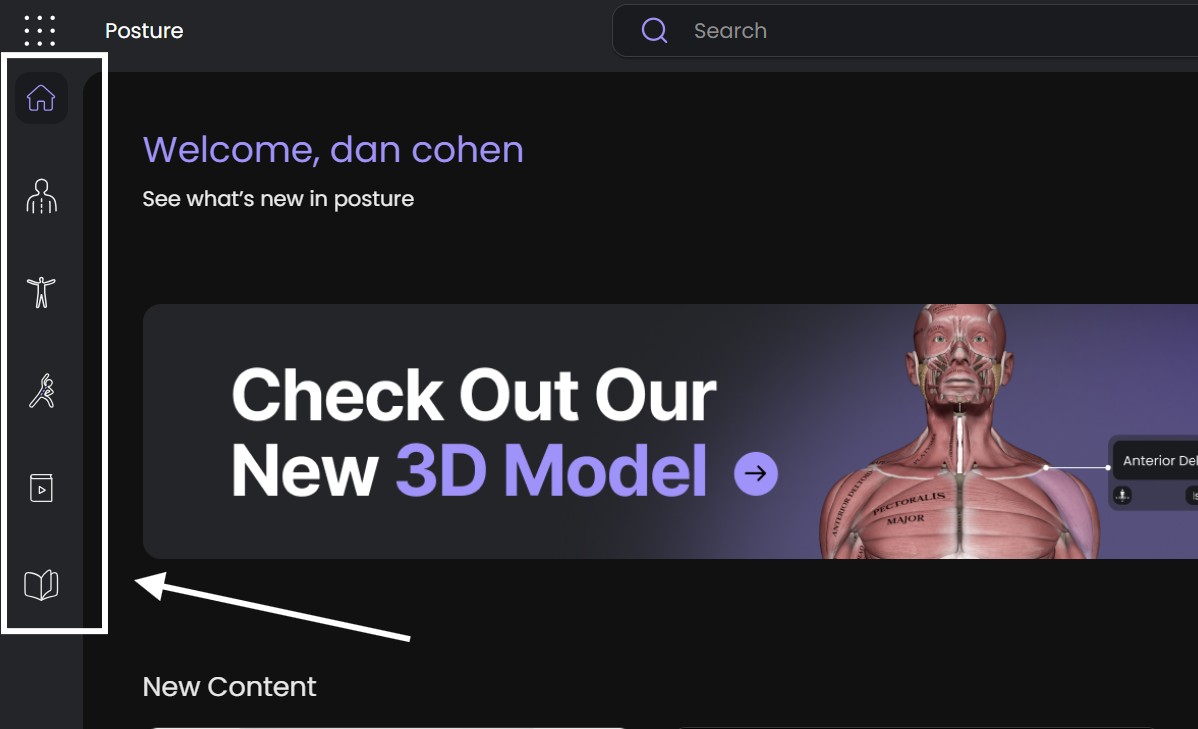
The left-hand sidebar is always visible and has five main sections, plus Home:
Home – a dashboard with new, popular, and recently viewed content.
Posture – reference material on posture assessment and treatment, split into General Assessment, Treatment Theory, Postural Disorder, and Kinesiology.
3D Model – an interactive human body model you can rotate, isolate, and explore by muscle, bone, or joint.
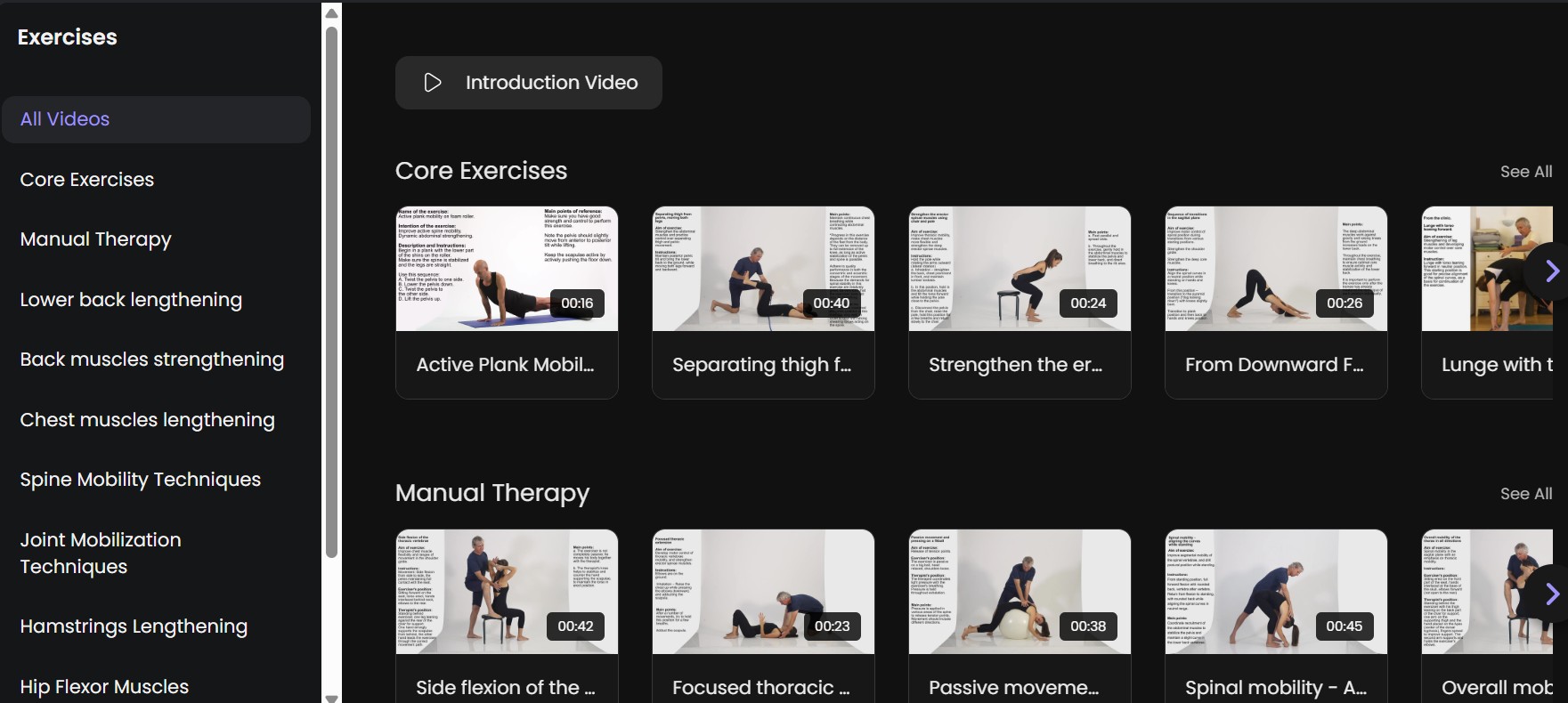
Exercises – therapeutic and corrective exercise videos, grouped by goal (Core Exercises, Manual Therapy, Spine Mobility Techniques, and more).
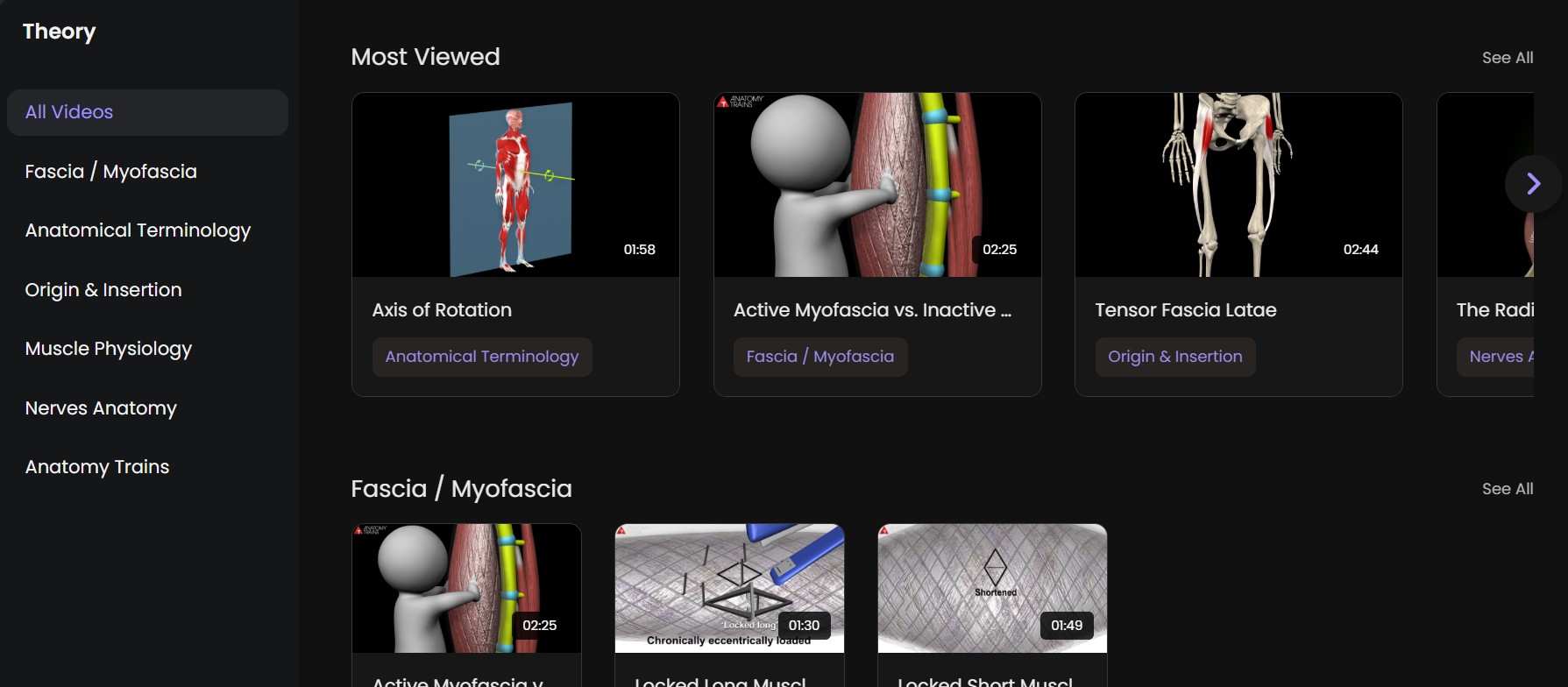
Theory – a video library organized by topic (Fascia/Myofascia, Anatomical Terminology, Origin & Insertion, Muscle Physiology, Nerves Anatomy, Anatomy Trains).
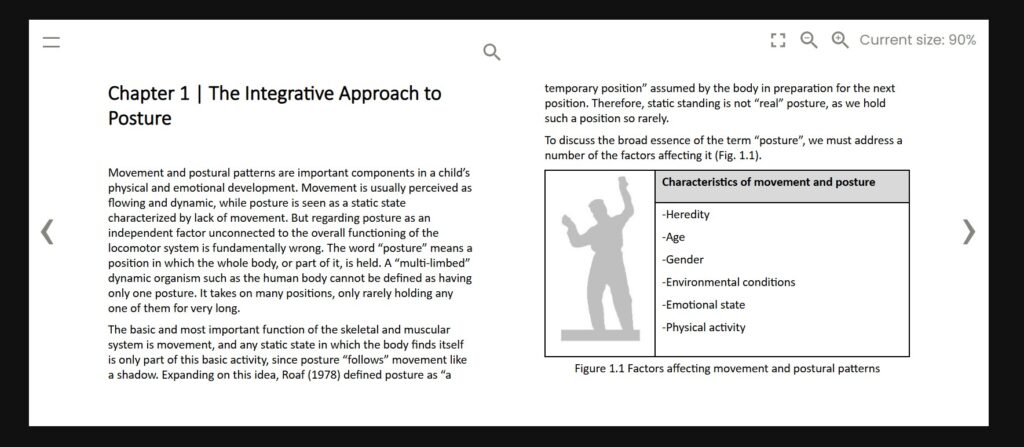
E-Book– an e-book reader with reference reading on postural disorders and musculoskeletal dysfunction.
A Help icon sits at the bottom of the sidebar with FAQs, feedback, and legal links.
Home screen #
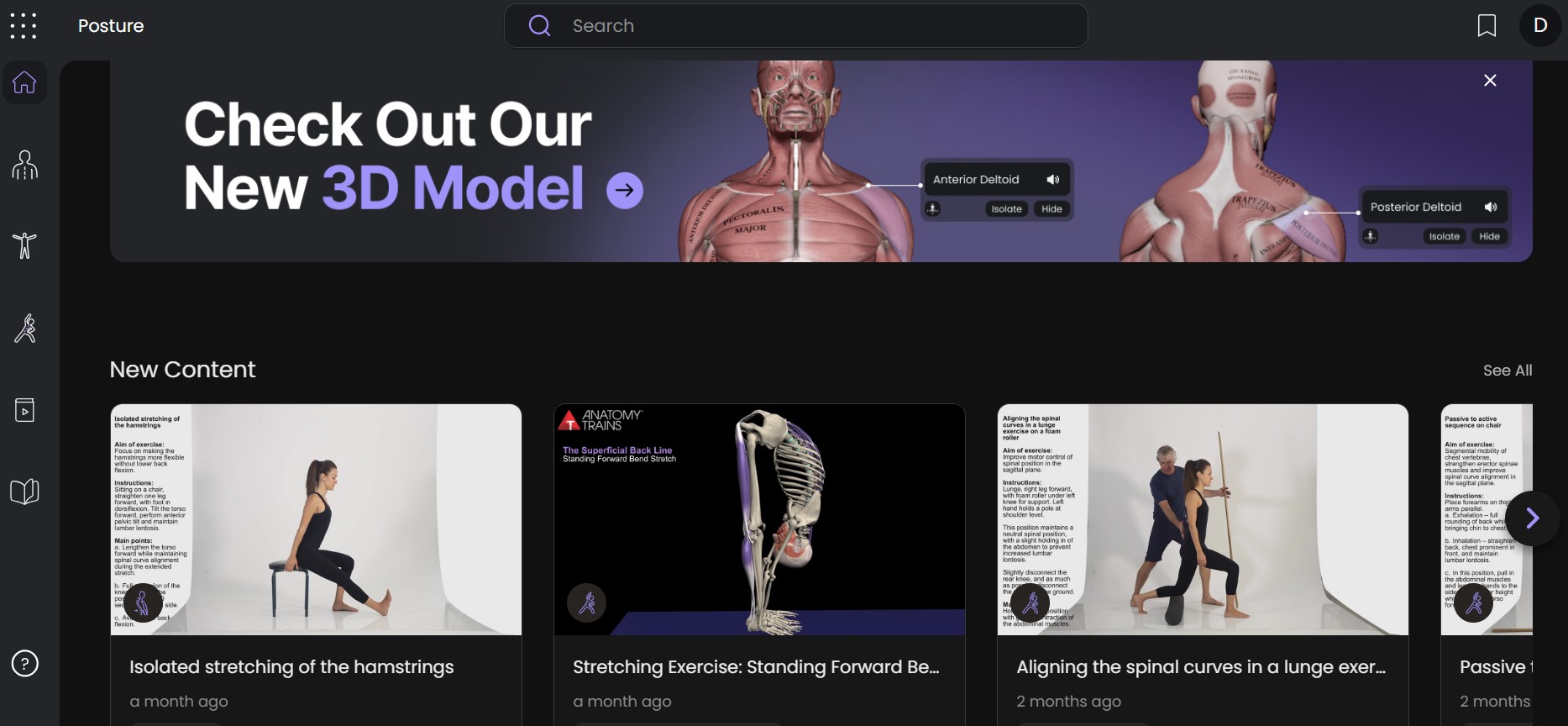
When you open the app you land on Home. It shows a welcome message and several horizontal, scrollable rows such as “New Content” and “Most Popular.” Click any thumbnail to open that video.
Top bar #
Across the top of every screen:
– Search – searches the whole app at once, returning grouped results across Posture, Theory, Exercises, Muscles, and Bones & Joints.
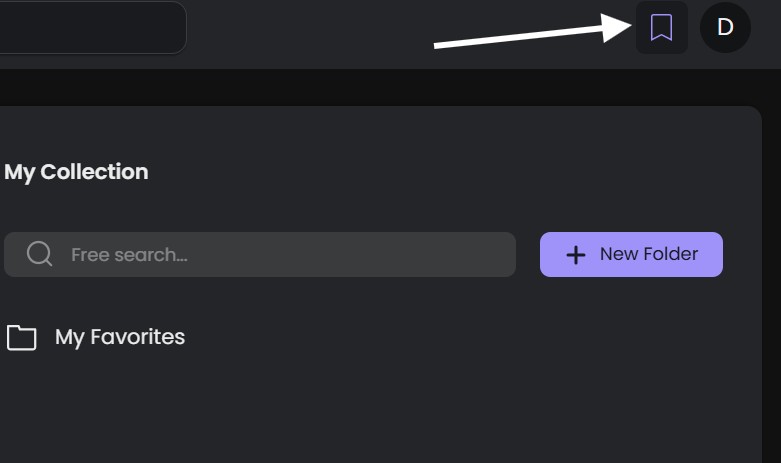
– Bookmark icon – opens My Collection, where saved videos are stored.
– Profile icon – your account menu (name, email, My Profile, Pricing, and Log out).

Posture — assessment and treatment reference
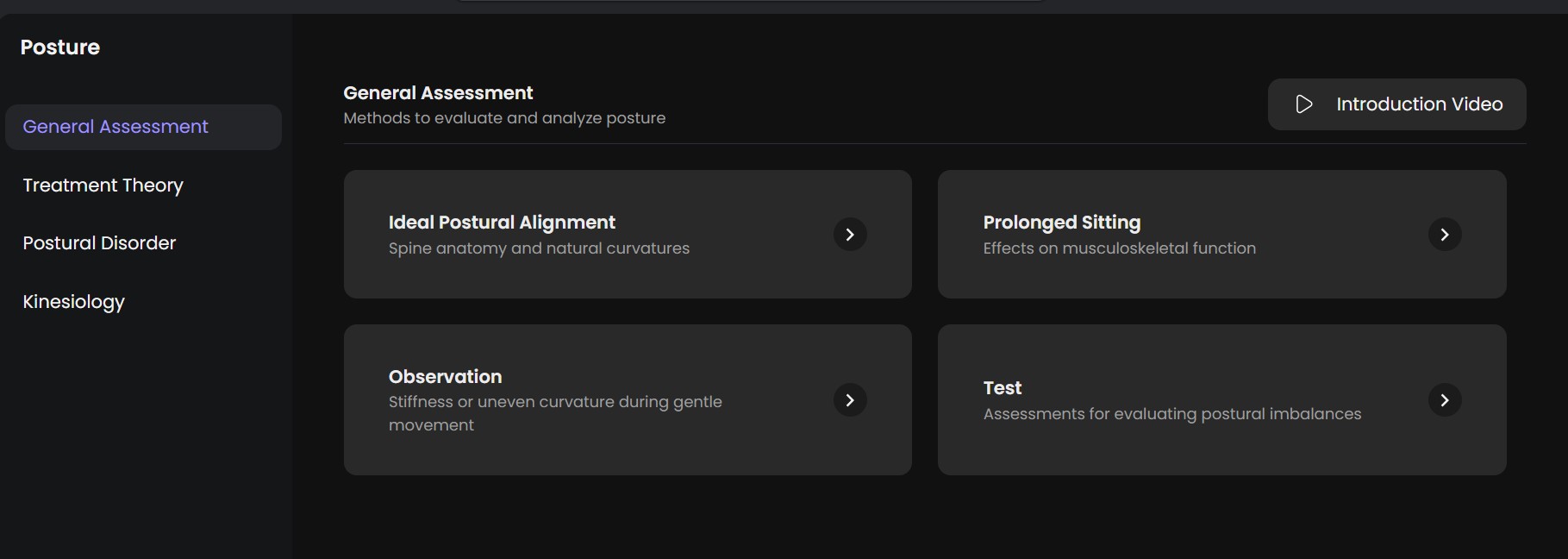
This section covers how to assess and treat posture, split across four tabs: General Assessment (methods to evaluate posture), Treatment Theory, Postural Disorder (conditions like Kyphosis or Lordosis), and Kinesiology (movement science by body region). Each tab shows topic cards that open into a list of related videos.
The 3D Model section
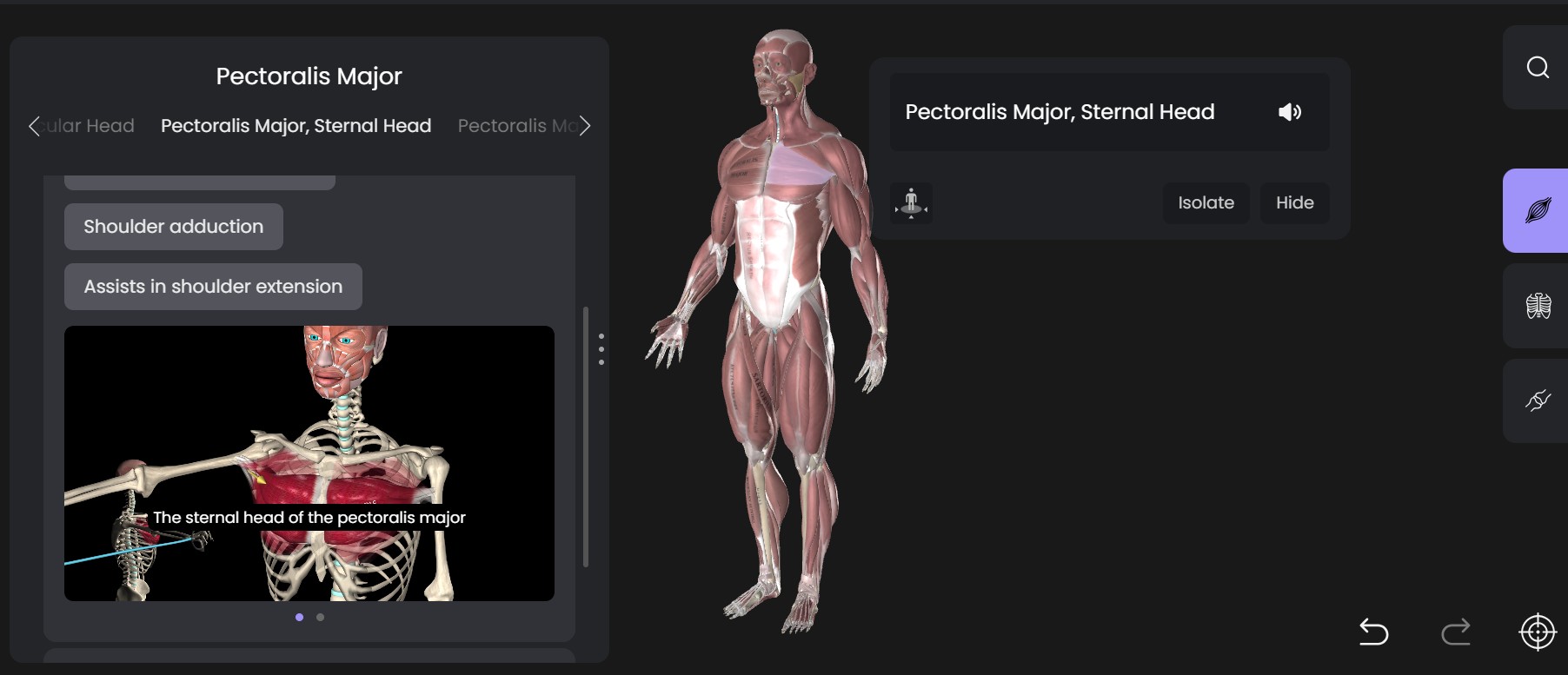
This is the same interactive body model used in the Anatomy app. On the right side, three icons let you switch between viewing Muscles, Bones, and Joints as separate layers. Clicking any structure on the model (or finding it through the in-model search) opens a panel with details: Movements, General Info, and Origin & Insertion, plus buttons to Isolate or Hide that structure.
Exercises —
This section is easy to confuse with the Posture section’s videos, so it’s worth calling out clearly: Exercises are therapeutic movements — stretches, strengthening, and manual therapy techniques — grouped by goal rather than by condition. Thumbnails show the exercise name, aim, and instructions directly on the card, so you can preview an exercise before opening it.
The Theory section
A video library similar to Anatomy’s, with an added Fascia/Myofascia category alongside general anatomy topics. A left-hand list lets you jump to a specific category, or browse “All Videos.”
E-Book
An e-book reader with reference reading on postural disorders. It opens like a flipbook, with page-turn arrows, zoom controls, and a menu for jumping to a chapter.
My Collection
Click the bookmark icon in the top bar to open My Collection. By default there’s one folder, My Favorites, and you can create additional folders to organize saved videos. A free-text search box lets you search within your saved items.
Account menu
Clicking your profile icon (top right) opens a menu with your name and email, plus links to My Profile (account details, language, and content preferences) and Pricing.
Tips
– If you’re not sure whether what you need is posture reference material or a targeted movement, check Posture first for assessment and condition info, and Exercises for a specific stretch or strengthening move.
– The Search bar (top bar) searches everything at once — poses, exercises, videos, and 3D model structures — so it’s usually the fastest way to find something specific.
—
How to Search for Therapeutic Exercises #
This covers how to find a specific therapeutic exercise using the app’s search, rather than browsing through categories manually.
Type a keyword into the Search field in the top bar — for example “thoracic” or “hamstring.” A dropdown appears showing matching results grouped by section, including an Exercises group with its own result count.
[SCREENSHOT: Search dropdown open showing grouped results with an “Exercises” group and its result count]
Click the expand arrow next to the Exercises group to open the full list of matching exercise videos on their own page. From there, category tabs across the top let you filter results down to just Exercises (or another section), and a Sort By dropdown lets you reorder results (Default, A-Z, or Z-A).
[SCREENSHOT: Full search results page with the category filter tabs and Sort By dropdown visible, Exercises tab selected]
Each result thumbnail shows the exercise name, aim, and instructions directly on the card, so you can often tell whether it’s the right one before opening it.
[SCREENSHOT: An exercise thumbnail showing the name, aim, and instructions text, with cursor hovering over it]
—
Using the 3D Model #
This covers how to explore the interactive 3D body model to find muscles, bones, and joints and view detailed information about them.
Open the 3D Model from the left sidebar. Click and drag on the model to rotate it, and use the right-side layer icons to switch between viewing Muscles, Bones, and Joints. The zoom control and Home View button (bottom right) let you zoom in and reset the camera to its default position.
[SCREENSHOT: 3D Model default view with the right-side layer icons and bottom-right zoom/Home View controls visible]
To find a specific structure, either click directly on it in the model, or use the in-model Search icon and type a name (for example “Trapezius”). Selecting a structure opens an info panel showing related sub-parts as tabs, a Learn More link, and expandable sections for Movements, General Info, and Origin & Insertion. Next to the structure’s floating label, Isolate hides everything else on the model, and Hide removes just that structure from view.
[SCREENSHOT: Structure info panel open for a muscle, showing the sub-part tabs, Movements/General Info/Origin & Insertion sections, and the Isolate/Hide buttons on the floating label]
Tips
– Isolating a structure is useful for exam prep — it removes visual clutter so you can focus on one muscle, bone, or joint at a time.
– The in-model search is faster than rotating and clicking manually, especially for smaller or deeper structures.
—
Changing User Preferences #
This covers how to update your profile details, language, and content preferences.
Click your profile icon (top right) and select My Profile. On the My Profile tab you can update your photo and full name, and scroll down to find the Language dropdown to change the app’s display language.
[SCREENSHOT: My Profile tab showing the photo, Full Name field, and Language dropdown]
Click the Content Preferences tab (the star icon) to choose up to six topics you’re most interested in, such as Kyphosis or Therapeutic Exercises — the app uses these to personalize what’s recommended to you on Home. Click Save at the bottom of the screen to apply any changes.
[SCREENSHOT: Content Preferences tab showing the topic tags, with a few selected and highlighted in purple, and the Save button visible]
Tips
– Content preferences only affect recommendations — they don’t hide or restrict any content from you.
Save Videos to “My Collection” #
This covers how to save videos so you can find them again quickly, without searching or browsing each time.
Open a video and click the bookmark icon on the player to save it — this adds it to your My Favorites folder by default.
[SCREENSHOT: Bookmark icon on a video player page, shown in its saved (filled) state]
Click the bookmark icon in the top bar (available from any screen) to open My Collection and see everything you’ve saved. Click New Folder to organize saved videos beyond the default My Favorites folder, and use the Free search box inside My Collection to quickly find a specific saved video by name.
[SCREENSHOT: My Collection panel open, showing the Free search field, New Folder button, and My Favorites folder]
Tip
– Organizing into folders (for example, by topic or by client) makes it much easier to find things during exam prep or client sessions.