

This overview introduces the layout of the Posture app so you know where to find things before diving in.
Main navigation #
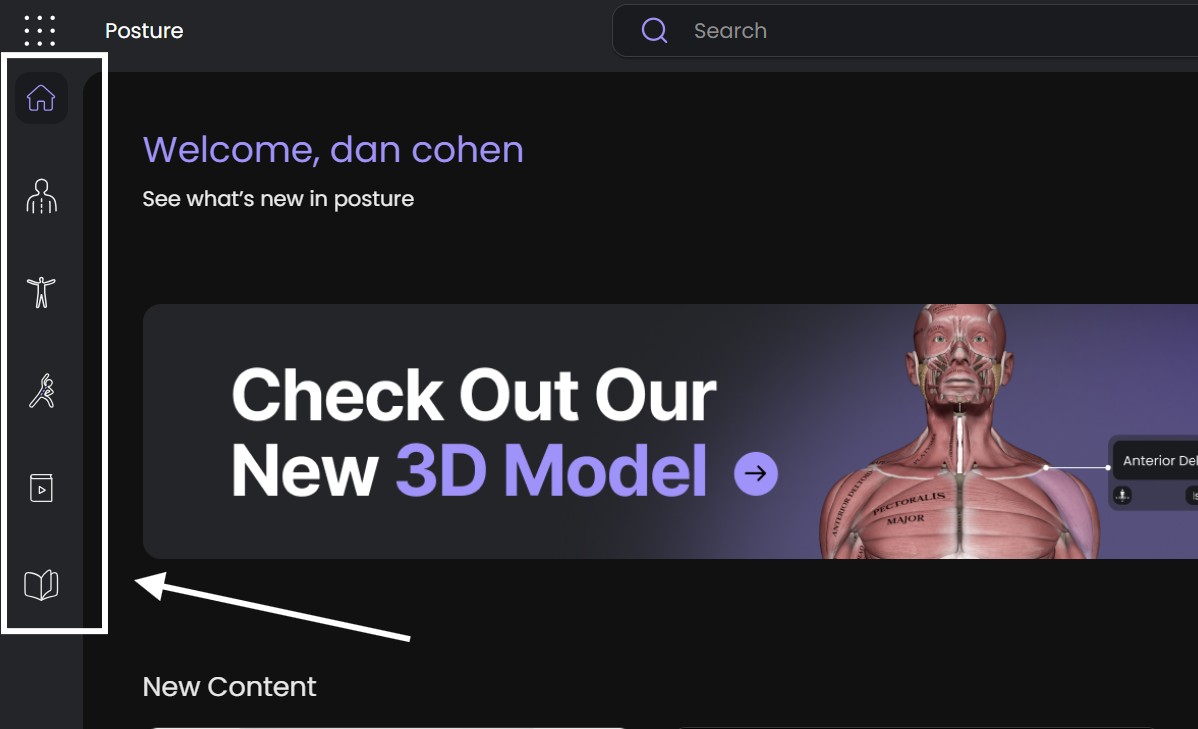
The left-hand sidebar is always visible and has five main sections, plus Home:
Home: a dashboard with new, popular, and recently viewed content.
Posture: reference material on posture assessment and treatment, split into General Assessment, Treatment Theory, Postural Disorder, and Kinesiology.
3D Model: an interactive human body model you can rotate, isolate, and explore by muscle, bone, or joint.
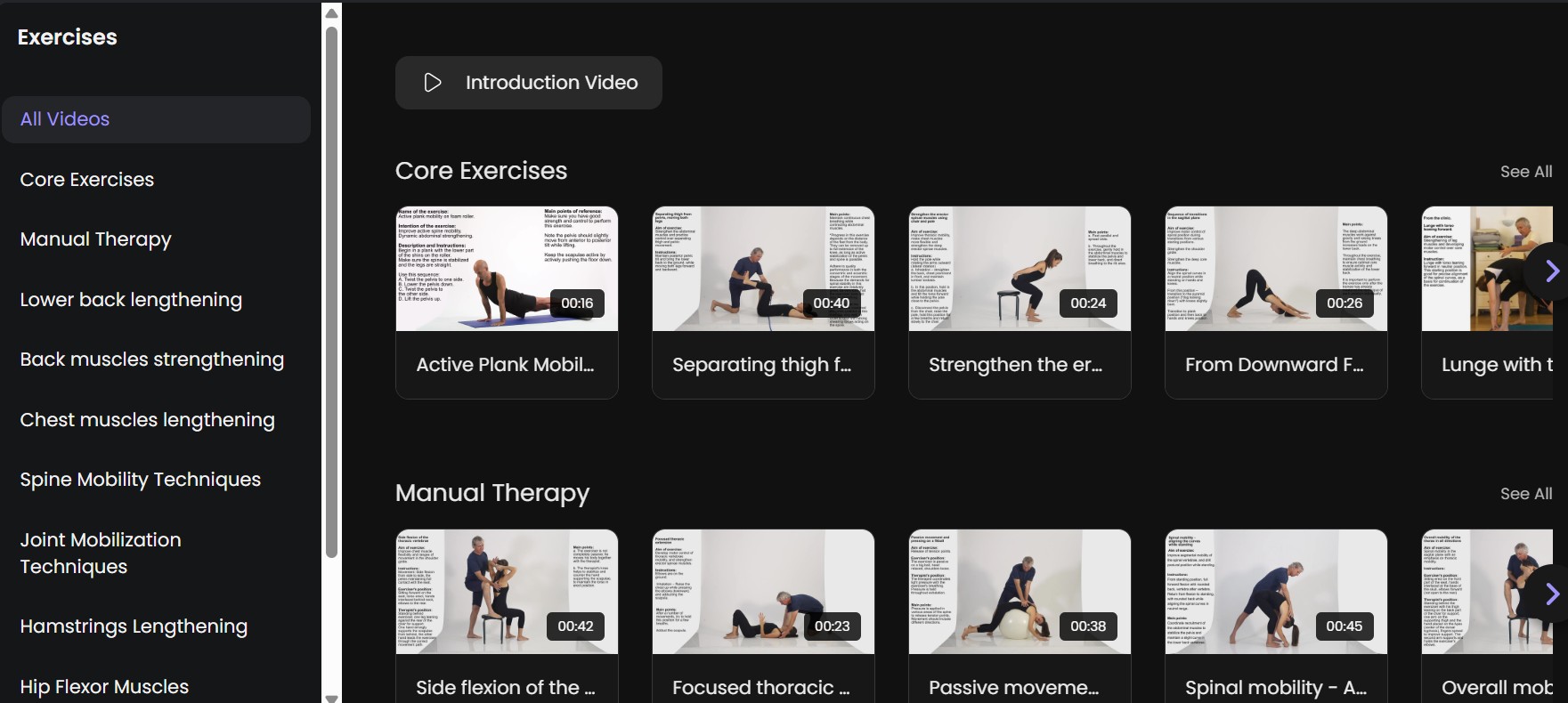
Exercises: therapeutic and corrective exercise videos, grouped by goal (Core Exercises, Manual Therapy, Spine Mobility Techniques, and more).
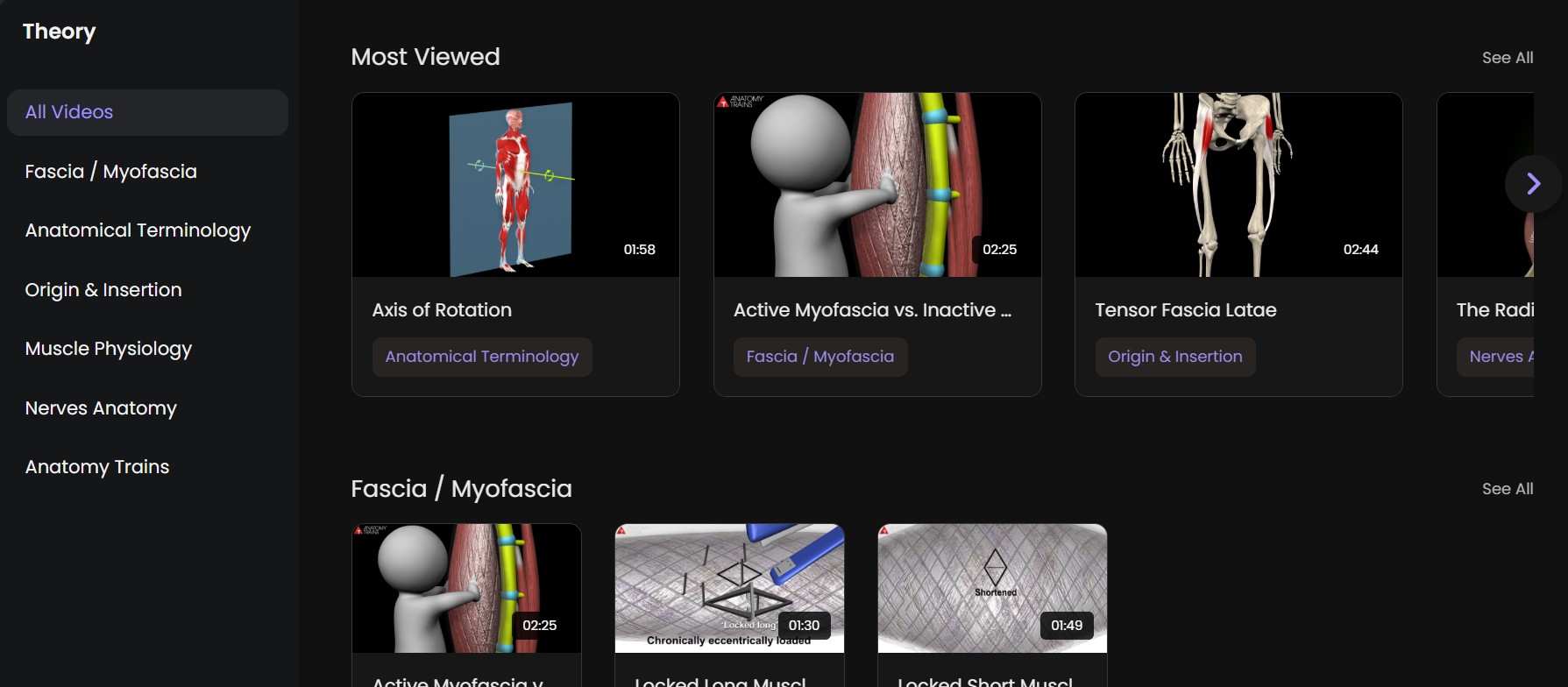
Theory: a video library organized by topic (Fascia/Myofascia, Anatomical Terminology, Origin & Insertion, Muscle Physiology, Nerves Anatomy, Anatomy Trains).
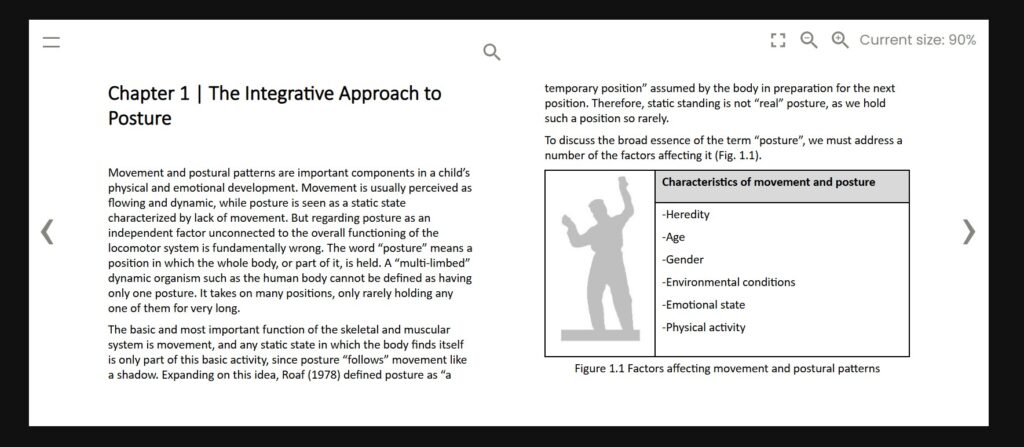
E-Book: an e-book reader with reference reading on postural disorders and musculoskeletal dysfunction.
A Help icon can be found at the bottom of the sidebar with FAQs, feedback, and legal links.
Home screen #
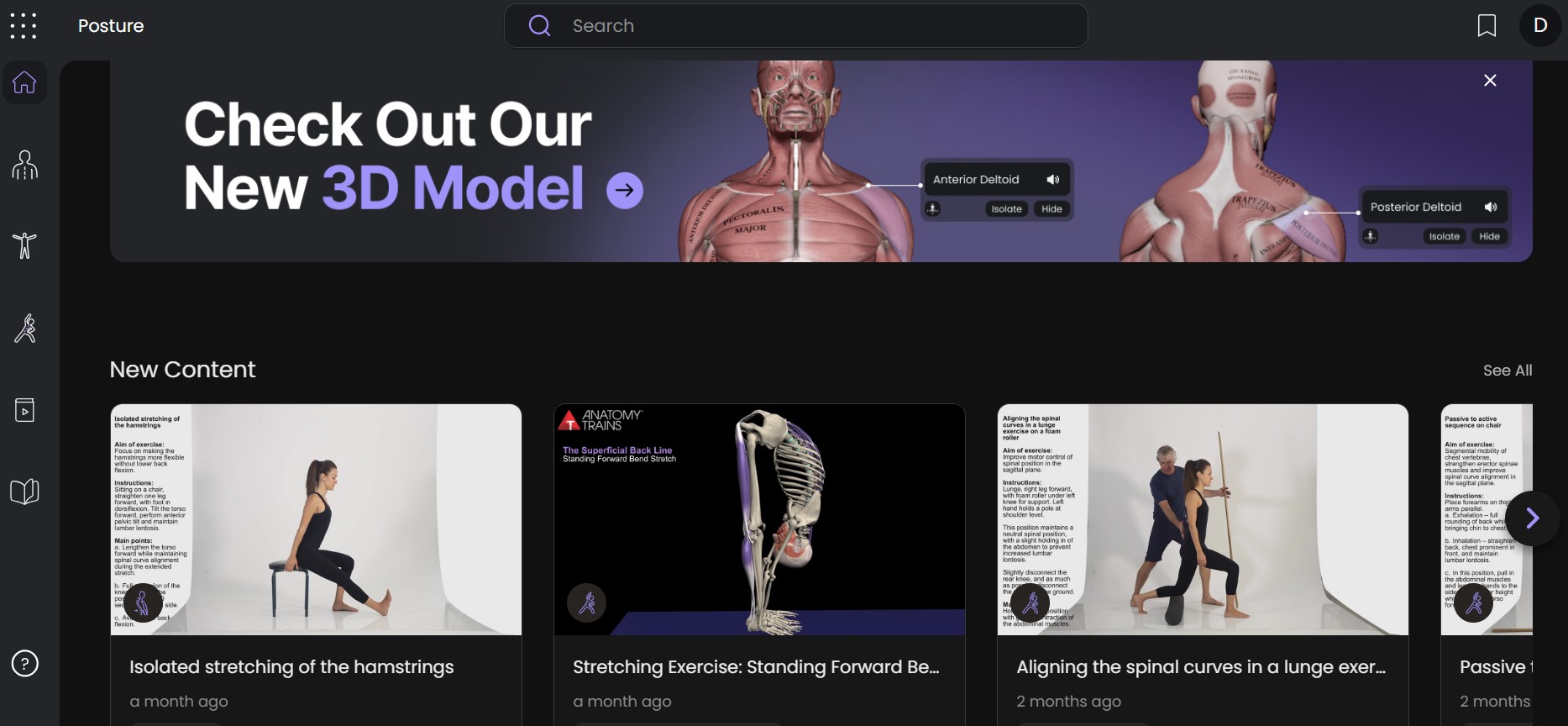
When you open the app you land on Home. It shows a welcome message and several horizontal, scrollable rows such as “New Content” and “Most Popular.” Click any thumbnail to open that video.
Top bar #
Across the top of every screen:
Search: searches the whole app at once, returning grouped results across Posture, Theory, Exercises, Muscles, and Bones & Joints.
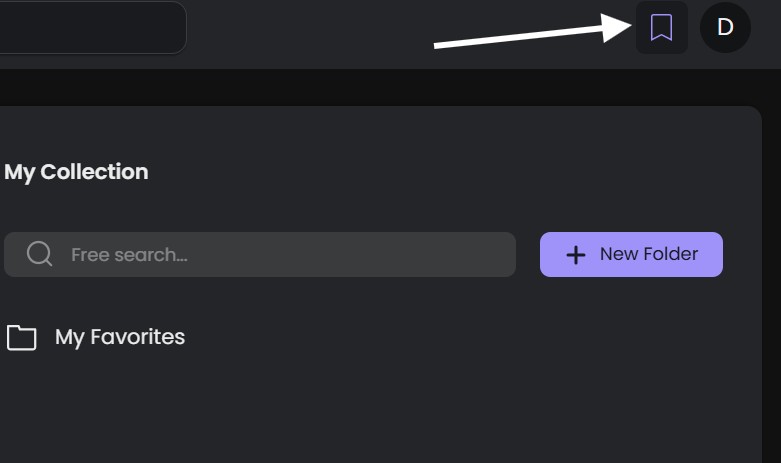
Bookmark icon: opens My Collection, where saved videos are stored.
Profile icon: your account menu (name, email, My Profile, Pricing, and Log out).

Posture: assessment and treatment reference
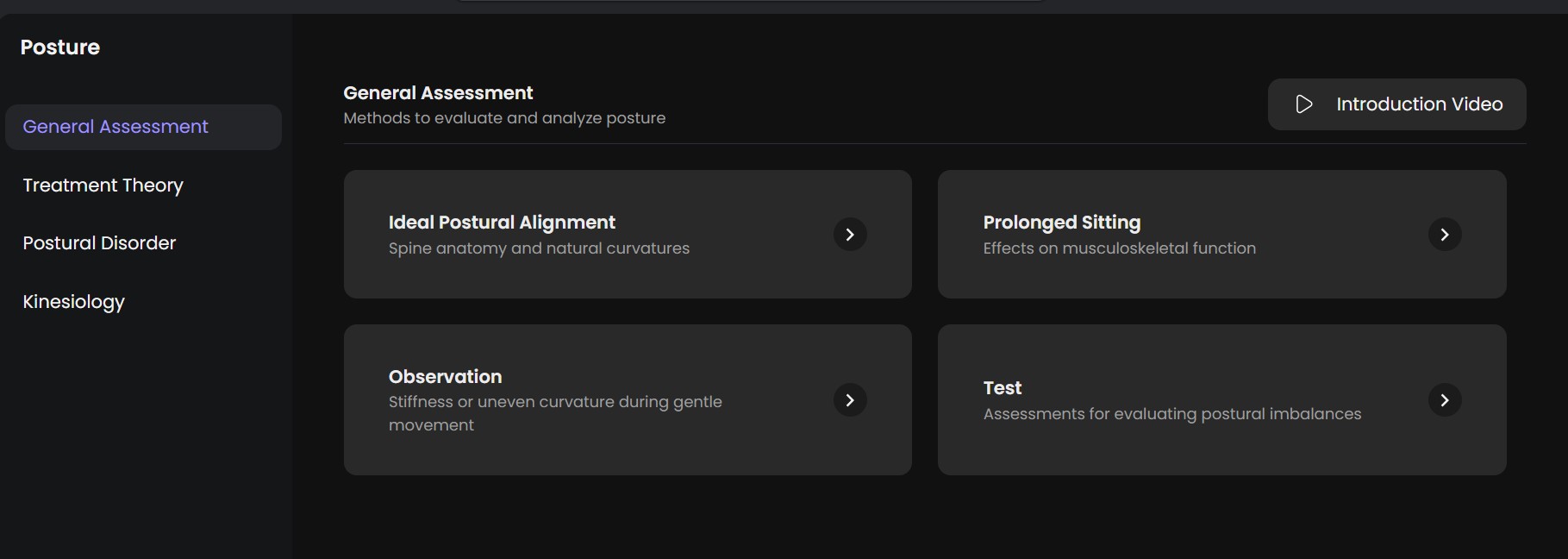
This section covers how to assess and treat posture, split across four tabs: General Assessment (methods to evaluate posture), Treatment Theory, Postural Disorder (conditions like Kyphosis or Lordosis), and Kinesiology (movement science by body region). Each tab shows topic cards that open into a list of related videos.
The 3D Model section
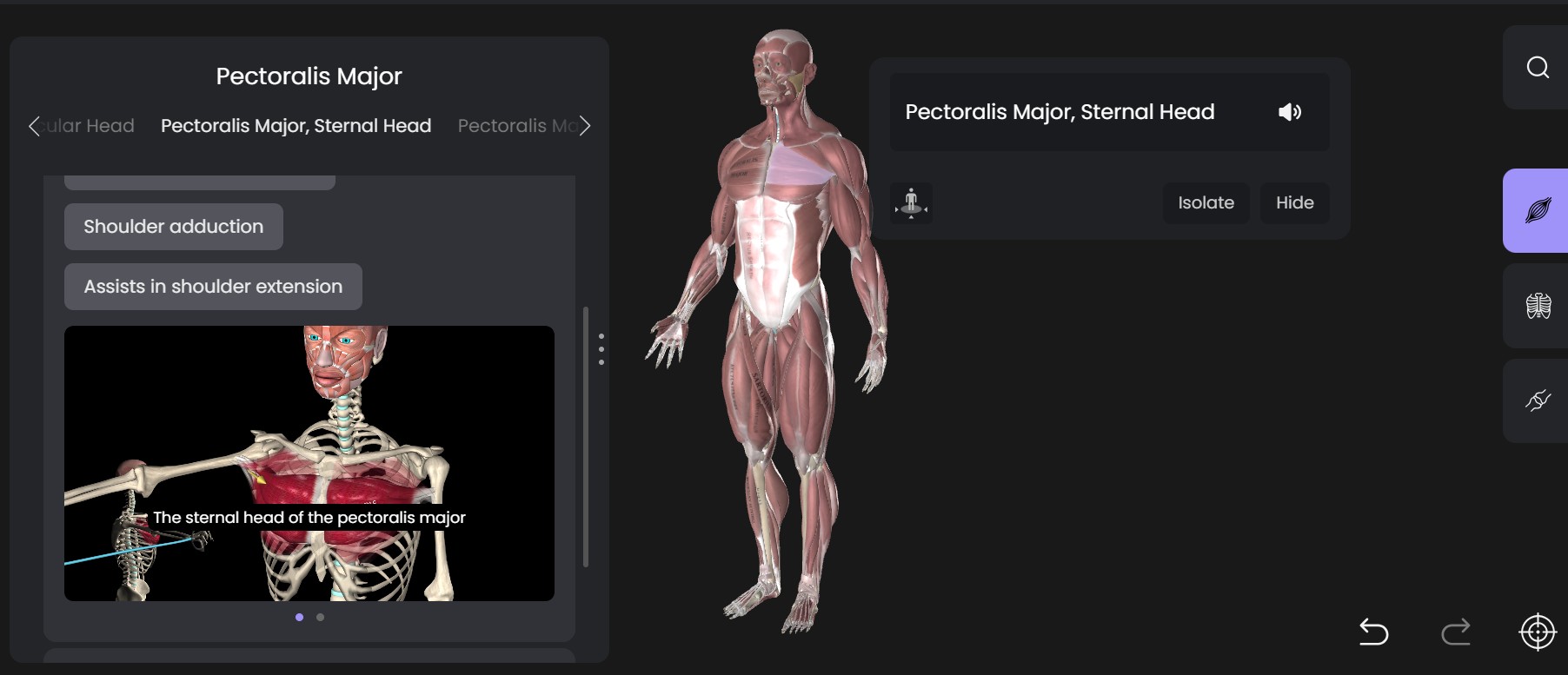
This is the same interactive body model used in the Anatomy app. On the right side, three icons let you switch between viewing Muscles, Bones, and Joints as separate layers. Clicking any structure on the model (or finding it through the in-model search) opens a panel with details: Movements, General Info, and Origin & Insertion, plus buttons to Isolate or Hide that structure.
Exercises
This section is easy to confuse with the Posture section’s videos, so it’s worth calling out clearly: Exercises are therapeutic movements, stretches, strengthening, and manual therapy techniques, grouped by goal rather than by condition. Thumbnails show the exercise name, aim, and instructions directly on the card, so you can preview an exercise before opening it.
The Theory section
A video library similar to Anatomy’s, with an added Fascia/Myofascia category alongside general anatomy topics. A left-hand list lets you jump to a specific category, or browse “All Videos.”
E-Book
An e-book reader with reference reading on postural disorders. It opens like a flipbook, with page-turn arrows, zoom controls, and a menu for jumping to a chapter.
My Collection
Click the bookmark icon in the top bar to open My Collection. By default there’s one folder, My Favorites, and you can create additional folders to organize saved videos. A free-text search box lets you search within your saved items.
Account menu
Clicking your profile icon (top right) opens a menu with your name and email, plus links to My Profile (account details, language, and content preferences) and Pricing.
Tips
If you’re not sure whether what you need is posture reference material or a targeted movement, check Posture first for assessment and condition info, and Exercises for a specific stretch or strengthening move.
The Search bar (top bar) searches everything at once — poses, exercises, videos, and 3D model structures — so it’s usually the fastest way to find something specific.
More info similar to other apps: #
Save Videos to “My Collection”